

1. Overview
This manual explains how to use the Elimu Portal front office for certificate verification services. It covers login, application submission, dashboard tracking, and approval results.
2. Access and Authentication
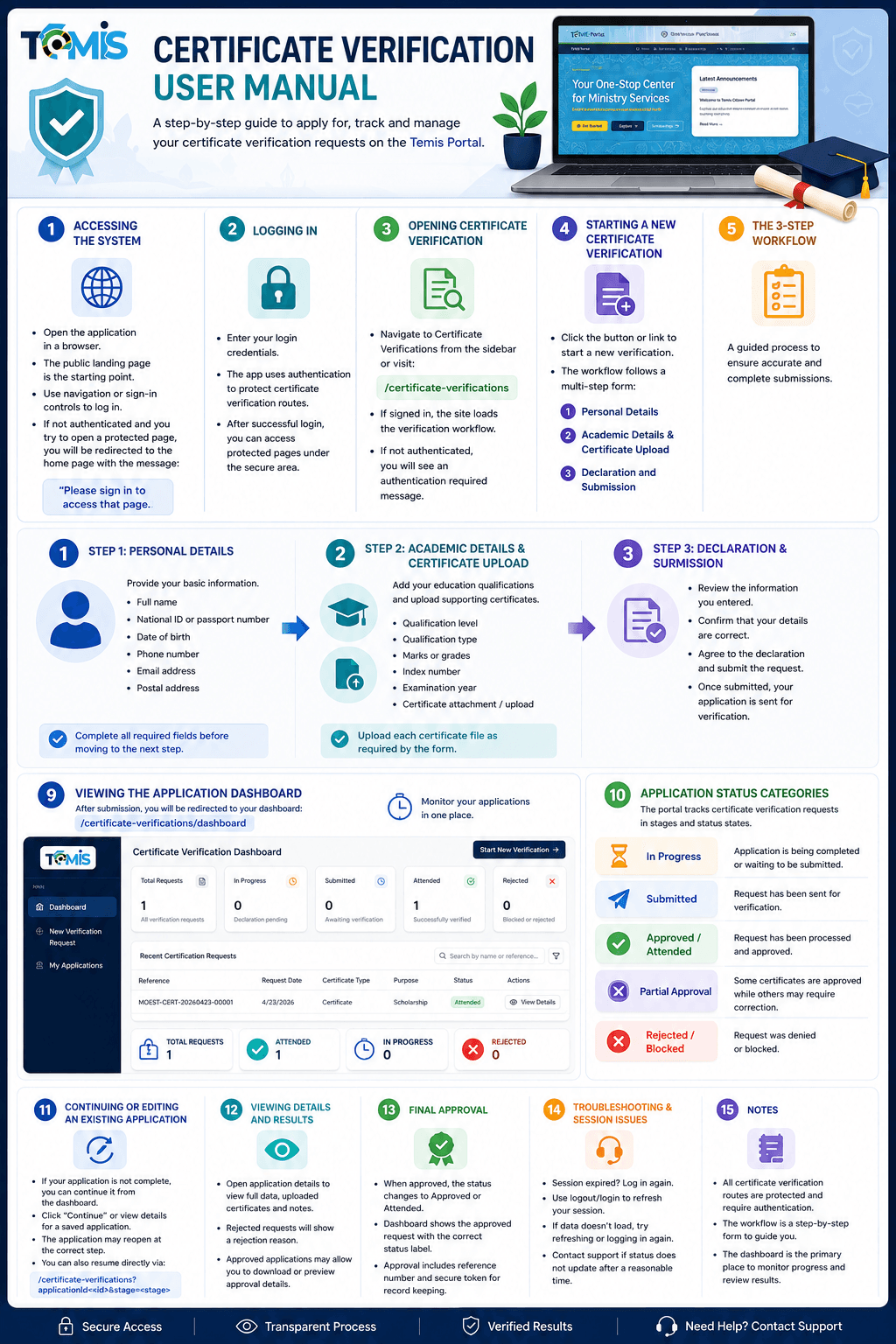
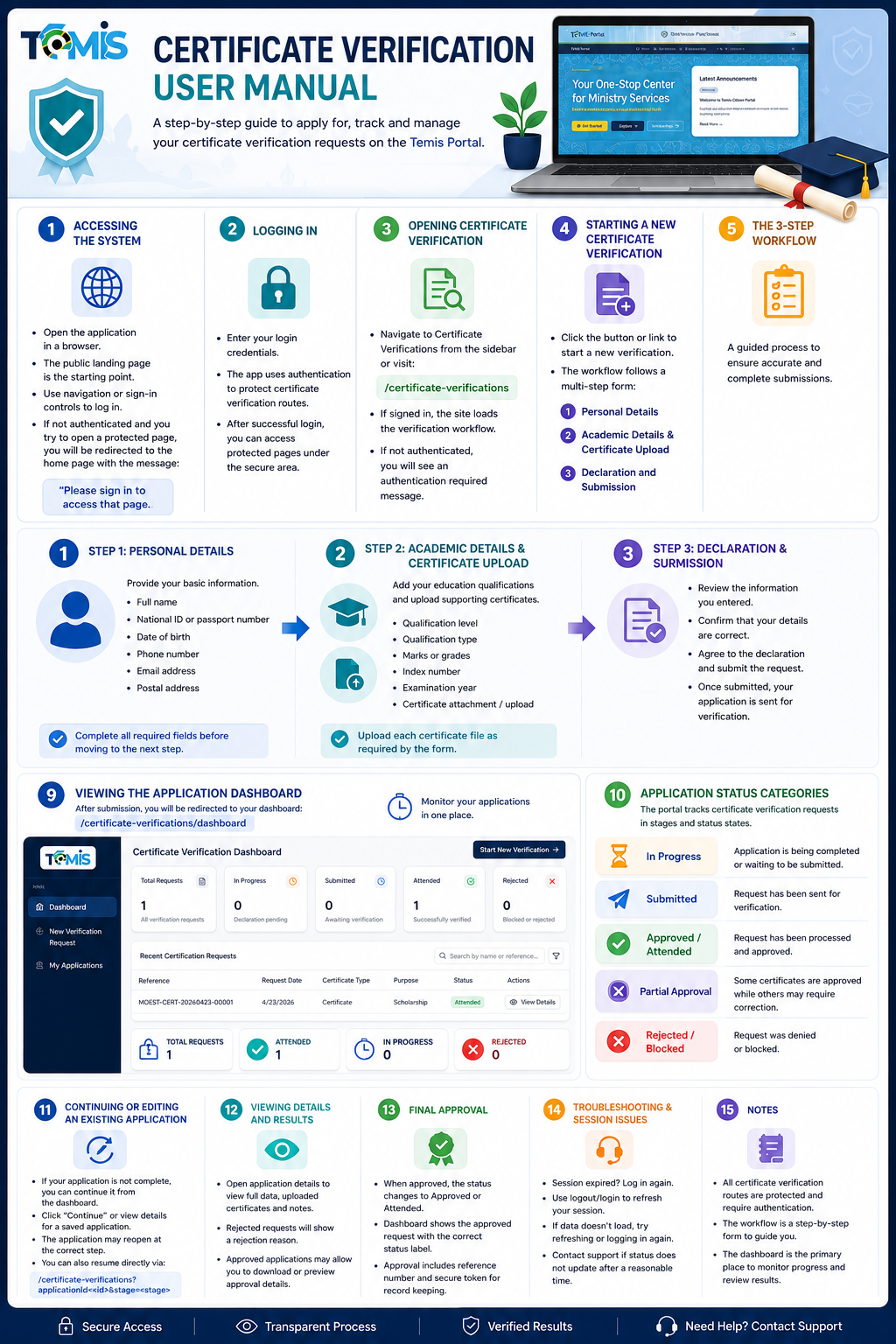
- Visit the portal in your browser.
- Sign in using your account credentials.
- Certificate verification pages are protected and require authentication.
- If you access the service without signing in, the portal redirects you to the home page with a sign-in prompt.
3. Starting a Certificate Verification Request
Use the certificate verification service page at /certificate-verifications to begin a new request.
- Click "New Verification Request" to open the guided workflow.
- The request follows a multi-step form with clear progress stages.
- Complete the three main sections before submitting.
4. Personal Details
- Provide your full name and contact information.
- Enter your national ID or passport number.
- Confirm your birth date and address details.
- Complete all required fields before proceeding.
5. Academic Details and Certificate Upload
- Add your academic qualification details and certificate information.
- Typical entries include qualification level, type, grades, index number, and exam year.
- Upload certificate files as required by the form.
- Ensure documents are complete and readable before submission.
6. Declaration and Submission
- Review all entered information for accuracy.
- Agree to the declaration terms.
- Submit the certificate verification request.
- After submission, your request is sent for review.
7. Dashboard and Tracking
- After submitting, the portal redirects you to the verification dashboard.
- The dashboard displays all active certificate requests.
- View request date, certificate type, purpose, and status.
- Use the dashboard to continue saved requests or open details.
8. Status Categories
- In Progress: request is being completed or waiting submission.
- Submitted: request has been sent for review.
- Approved / Attended: the verification is processed and accepted.
- Rejected / Blocked: the request was denied or blocked.
- Partial Approval: some certificates are approved while others require correction.
9. Resume or Edit Existing Requests
- Continue incomplete applications from the dashboard.
- Click "Continue" or open saved details to resume.
- The app may reopen the workflow at the correct stage.
- You can also resume via direct URL parameters if supported.
10. Troubleshooting
- If your session expires, log in again.
- Refresh the dashboard if application data fails to load.
- Verify required fields and uploaded documents before submitting.
- Contact support if status updates do not appear.